
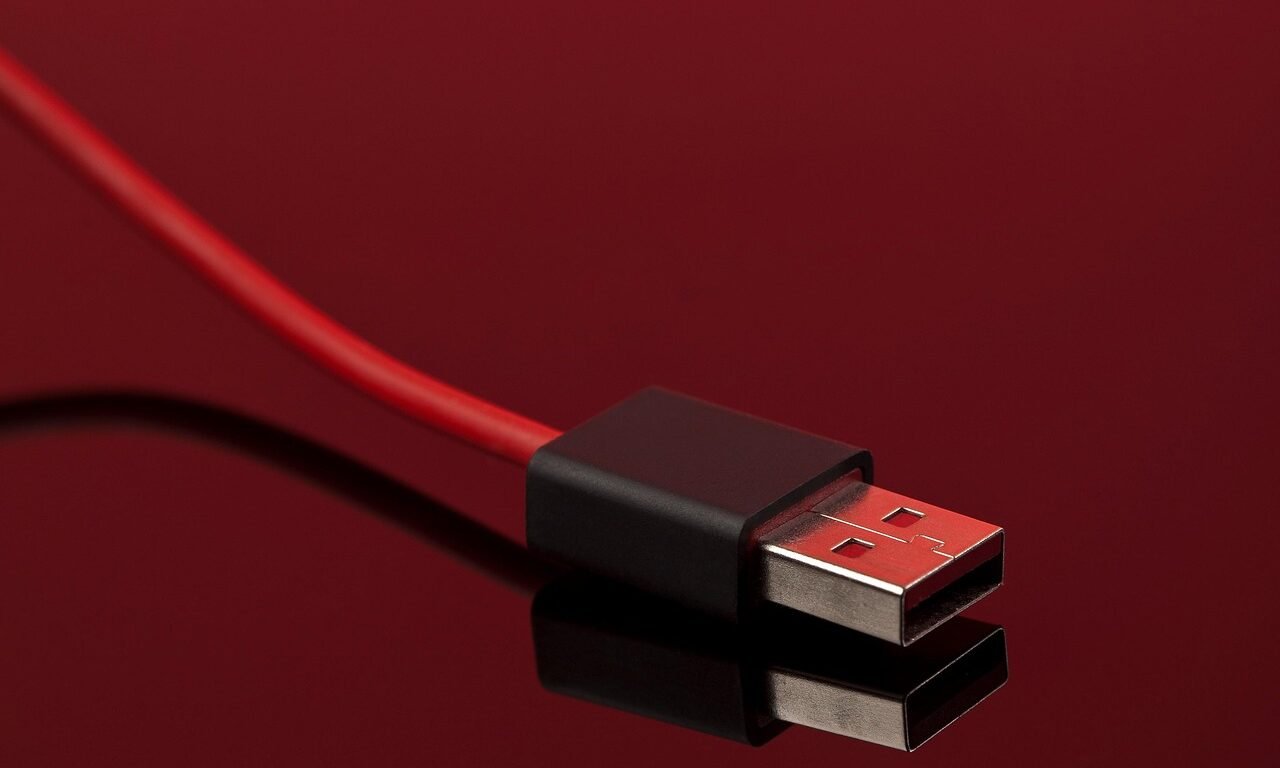
If you’ve ever tried to connect a printer and ended up staring at a tangle of cables wondering which one fits — you’re not alone. The USB to USB Type B cable is one of the most overlooked yet essential cables in any home office, recording studio, or electronics lab. It’s not flashy. It doesn’t make headlines. But without it, your printer stays silent, your MIDI controller stays mute and your Arduino project goes nowhere.
This guide covers everything. By the end, you’ll know exactly which USB-A to USB-B cable you need, why it matters and how to avoid the common mistakes most people make when buying one.
What Is a USB to USB Type B Cable?
At its core, a USB to USB Type B cable connects a host device — usually your computer — to a peripheral device like a printer, audio interface or external hub. One end is the familiar flat, rectangular USB Type A connector that plugs into your computer or laptop. The other end is the USB Type B connector, a chunkier, roughly square plug with two beveled top corners that give it a distinctive rooftop shape.
Think of it like a handshake. Type A is the hand reaching out from your computer. Type B is the hand on the device accepting the connection. They’re designed specifically to work together, and that’s intentional — USB standards prevent you from accidentally plugging the wrong cable into the wrong port in a way that could cause damage.
Breaking Down the Two Ends
- USB Type A (Host End): Flat, rectangular, universally recognized. Found on computers, laptops, wall chargers and USB hubs. This is the “upstream” connector.
- USB Type B (Device End): Square with beveled top corners. Found on printers, scanners, audio interfaces, Arduino boards and older external drives. This is the “downstream” connector.
The relationship is always one-directional in terms of data flow — your computer controls the connection while the peripheral responds to it. That’s the foundation of how USB communication works.
USB Type B vs Other USB Types — A Quick Comparison
Not all USB connectors are created equal. Here’s how USB Type B stacks up against its siblings:
| Connector Type | Shape | Common Use Cases | Still Relevant? |
| USB Type A | Flat rectangle | Computers, chargers, hubs | Yes — universal |
| USB Type B | Square with beveled top | Printers, audio gear, Arduino | Yes — legacy devices |
| USB Type C | Oval, reversible | Modern laptops, phones, tablets | Yes — growing fast |
| Micro USB | Small trapezoid | Older phones, controllers | Fading out |
| Mini USB | Slightly larger trapezoid | Older cameras, MP3 players | Nearly obsolete |
| USB 3.0 Type B | Square with extra bump on top | High-speed external drives, hubs | Niche but active |
The key takeaway? USB Type B cables aren’t going away anytime soon. Millions of devices still rely on them daily.
Where Is a USB to USB Type B Cable Actually Used?
You might be surprised by just how many devices still use a USB-A to USB-B cable. This connector is hiding in plain sight across homes, studios and labs worldwide.
Printers and Scanners
This is the most common use case by far. Walk into any office supply store, buy a desktop printer and there’s a strong chance the box includes — or strongly recommends — a USB printer cable with a Type B connector. Brands like HP, Canon, Epson and Brother have been shipping printers with USB Type B ports for decades.
Why hasn’t the industry moved on? Simple: reliability. USB Type B connections are robust, standardized and don’t require drivers beyond what Windows or macOS already provides. For a device that just needs to receive print jobs consistently, it works perfectly. Wireless printing is convenient but introduces latency, connectivity drops and setup headaches. Many professionals still prefer the plug-and-play certainty of a USB to USB Type B cable for their primary printing setup.
Pro tip: If your printer isn’t being detected by your computer, swap the USB Type B cable before you start reinstalling drivers. A faulty cable is the culprit far more often than people think.
Audio Equipment and MIDI Devices
Walk into any recording studio — home or professional — and you’ll find USB Type B cables running between computers and audio interfaces. Devices like the Focusrite Scarlett series, PreSonus AudioBox, Behringer UMC series and dozens of others use USB Type B as their primary connection standard.
MIDI controllers, digital pianos and electronic drum kits are in the same boat. Your Arturia KeyLab, Native Instruments Maschine or Roland digital piano almost certainly has a USB Type B port on the back. The connection carries both MIDI data and, in many cases, power to the device simultaneously.
Why does this matter for audio? Because in studio environments, cable shielding is everything. A poorly shielded USB cable introduces electrical noise into your signal chain — and that noise shows up as an audible hum or buzz in your recordings. More on this in the buying guide section.
Arduino and Electronics Projects
The Arduino Uno — arguably the world’s most popular microcontroller board — uses a USB Type B port for programming and power. Every maker, hobbyist and engineering student who’s ever uploaded a sketch to an Uno has used a USB-A to USB-B cable to do it.
Beyond Arduino, you’ll find USB Type B on:
- Oscilloscopes and bench multimeters
- Programmable logic controllers (PLCs)
- CNC machine controllers
- Laboratory measurement instruments
These are environments where durability and secure connections matter more than sleek aesthetics. The USB Type B connector’s locking fit makes it ideal for workbench setups where cables get jostled regularly.
External Hard Drive Enclosures and USB Hubs
Older external hard drive enclosures — particularly those from the early-to-mid 2010s — frequently used USB Type B or a variant called USB 3.0 Type B (which looks like a standard Type B with an extra blue bump on top). Powered USB hubs from the same era also sport USB Type B ports for their upstream connection to a computer.
If you’re still running one of these devices, don’t panic. A USB to USB-B cable is cheap, widely available and gives you no reason to retire perfectly functional hardware.
USB to USB Type B Cable Speeds — What to Expect
Speed matters — especially if you’re transferring large files, recording audio at high sample rates or uploading firmware to a microcontroller repeatedly during development.
USB 1.1 vs USB 2.0 vs USB 3.0 Type B
| USB Standard | Max Transfer Speed | Typical Real-World Speed | Type B Variant |
| USB 1.1 | 12 Mbps | ~1 MB/s | Standard Type B |
| USB 2.0 | 480 Mbps | ~25–40 MB/s | Standard Type B |
| USB 3.0 | 5 Gbps | ~300–400 MB/s | USB 3.0 Type B (larger) |
| USB 3.1 Gen 2 | 10 Gbps | ~700–900 MB/s | Rare in Type B form |
For most common uses — printing, MIDI data, Arduino programming — USB 2.0 is completely sufficient. Print jobs don’t demand anywhere near 480 Mbps. MIDI data is tiny. Even audio interfaces running at 192kHz with multiple channels only use a fraction of USB 2.0’s bandwidth.
Where USB 3.0 Type B becomes relevant is in high-speed external storage and professional data acquisition equipment. If your device has a USB 3.0 Type B port, match it with a USB 3.0 cable to get the full benefit.
Does Cable Quality Affect Transfer Speed?
Absolutely — and this is where many buyers make a costly mistake. Here’s what separates a quality USB Type B cable from a cheap one:
- Wire gauge (AWG): A decrease in AWG values indicates wires that are thicker. Thicker power wires (28 AWG for data, 20–24 AWG for power) deliver cleaner, more stable connections.
- Shielding: Braided or foil shielding reduces electromagnetic interference, which is critical in audio setups.
- Conductor material: Oxygen-free copper (OFC) conductors offer better signal integrity than standard copper.
- Ferrite cores: Those little cylindrical lumps near connectors? They suppress high-frequency noise. Don’t overlook them.
A bargain-bin cable might technically work — until it doesn’t. Dropped connections mid-print, audio glitches during recording sessions and intermittent device recognition errors are all classic symptoms of a substandard USB to USB-B cable.
How to Choose the Right USB to USB-B Cable
With dozens of options on the market, choosing the right one doesn’t have to be overwhelming. Focus on these factors.
Length Matters More Than You Think
USB has a maximum recommended cable length of 5 meters (about 16 feet) for USB 2.0 without a signal booster. Beyond that, signal degradation becomes a real problem — you’ll see slower speeds, connection dropouts and unreliable behavior.
Here’s a practical length guide:
| Setup | Recommended Length |
| Desktop printer next to computer | 3 ft (1m) |
| Printer on a nearby shelf | 6 ft (1.8m) |
| Printer across the room | 10 ft (3m) |
| Extended setup / rack mount | 15 ft with active cable |
Active USB cables contain a built-in signal amplifier that extends reliable range up to 10–15 meters. If you need a longer run, don’t just buy a longer passive cable — get an active one.
USB 2.0 or USB 3.0 Type B — Which Do You Need?
This is one of the most common points of confusion. Here’s the simple answer: check your device’s port first.
USB 3.0 Type B connectors have a distinctive extra plastic bump on top of the standard square body — you literally can’t miss it once you know what to look for. USB 3.0 Type B cables are backward compatible with USB 2.0 ports but you won’t get the speed benefit unless both ends support USB 3.0.
Decision guide:
- Printer, scanner or MIDI device → USB 2.0 Type B cable
- Arduino Uno → USB 2.0 Type B cable
- External drive with USB 3.0 Type B port → USB 3.0 Type B cable
- Powered USB hub (upstream connection) → Check the hub’s spec sheet
Build Quality Checklist
Before hitting “add to cart,” run through this checklist:
- ✅ Gold-plated connectors (resist corrosion, improve conductivity)
- ✅ Braided nylon or woven sheathing (durability, tangle resistance)
- ✅ Strain relief at both connector ends (prevents wire breakage at the joint)
- ✅ Ferrite cores near connectors (noise suppression, especially for audio)
- ✅ Shielded twisted pair data wires (better signal integrity)
- ✅ UL or CE certification (basic safety compliance)
Top USB to USB Type B Cable Picks — Buying Guide
You don’t need to spend a fortune. But you shouldn’t buy the cheapest option either. Here’s how to match your needs to the right cable.
Best for Printers
For home and office printing, a USB 2.0 Type B cable is all you need. Look for:
- Length between 6–10 feet depending on your setup
- Basic shielding to prevent data errors
- Sturdy connectors that won’t loosen over repeated plug/unplug cycles
- Certifications from recognized brands like AmazonBasics, Cable Matters or Monoprice
Best for Audio Interfaces and MIDI
In audio environments, shielding is non-negotiable. A cable with double shielding (both foil and braided) will keep electrical noise out of your recordings. Look for cables specifically marketed for audio or studio use. Brands like Hosa Technology have built their reputation on exactly this use case.
Key specs for audio USB cables:
- 28 AWG data conductors
- Dual shielding (foil + braid)
- Ferrite cores on both ends
- Gold-plated Type B connector
Best Budget USB-A to USB-B Cable
Monoprice and Cable Matters consistently deliver reliable performance at budget prices. Their basic USB 2.0 Type B cables offer solid shielding, decent build quality and consistent connector fit — without the premium price tag of boutique brands.
Best Heavy-Duty / Premium Option
For studio professionals, industrial setups or anyone who just wants the best — look at cables from StarTech or Tripp Lite. These brands manufacture cables built to industrial standards with superior shielding, thicker gauge wires and connectors designed for thousands of insertion cycles.
Common Problems With USB Type B Cables (And How to Fix Them)
Even the best cable can cause headaches if something goes wrong. Here are the most common issues and how to tackle them.
Device Not Recognized by Computer
This is frustrating — you plug in your printer or audio interface and nothing happens. Before you blame the device or reinstall drivers, work through this checklist:
- Swap the USB Type B cable — try a known-good cable first
- Try a different USB port on your computer
- Restart both the device and the computer
- Check Device Manager (Windows) or System Information (Mac) for error codes
- Update or reinstall device drivers only after ruling out the cable
In most cases, the cable or port is the culprit. Driver issues are less common than people assume.
Slow Data Transfer Speeds
If transfers feel sluggish, consider these causes:
| Possible Cause | Fix |
| USB 2.0 cable on USB 3.0 device | Replace with USB 3.0 Type B cable |
| Cable length exceeding 5m | Use an active USB extension cable |
| Low-quality cable with thin conductors | Upgrade to a shielded, proper-gauge cable |
| USB port running in “Full Speed” mode | Check power management settings in OS |
| Competing USB devices on same hub | Connect directly to a computer port |
Physical Damage and Connector Wear
USB Type B connectors are durable — but not indestructible. Watch for these warning signs:
- The connector feels loose or wiggles in the port
- Visible fraying or kinking near the strain relief
- Intermittent connections that come and go with cable movement
- Discoloration or corrosion on the metal contacts
To extend cable lifespan: don’t yank cables out by the cord — always pull by the connector body. Avoid tight bends near the connectors. Store coiled loosely, not wrapped tight around a hook.
USB Type B Cable vs USB Type C — Is Type B Becoming Obsolete?
It’s a fair question. USB-C is everywhere now — on laptops, phones, tablets and increasingly on audio interfaces and even some printers. So where does that leave the USB Type B cable?
The Rise of USB-C
USB-C’s reversible design, higher power delivery and faster data speeds make it a clear upgrade in almost every measurable way. New audio interfaces from Focusrite, Universal Audio and MOTU are increasingly shipping with USB-C ports. Some newer printers are following suit.
That said, the transition is slow — and for good reason.
Why USB Type B Cables Still Matter Today
Consider the scale of the installed base. There are hundreds of millions of printers, audio interfaces, lab instruments and Arduino boards in active use right now — all relying on USB Type B connections. These devices have long lifecycles. A professional audio interface bought in 2018 will likely still be in daily use in 2030. Industrial equipment has lifecycles measured in decades.
“Legacy doesn’t mean irrelevant. It means proven.”
Adapters and converters offer a practical bridge. If your new laptop has only USB-C ports, a USB-C to USB-A adapter lets you keep using your existing USB Type B cables without replacing perfectly functional equipment.
USB Type B isn’t dying — it’s simply stabilizing. It occupies a specific, durable niche that USB-C hasn’t fully displaced yet.
Frequently Asked Questions About USB to USB Type B Cables
Is a USB Type B cable the same as a printer cable?
Yes — in most cases. The vast majority of desktop printers use a USB Type B port as their wired connection. So when someone says “printer cable,” they almost always mean a USB-A to USB-B cable. Just verify your printer’s port before buying.
Can I use a USB Type B cable for charging?
Not effectively. USB Type B cables carry power but at low wattage — they’re designed for data transfer, not charging. You wouldn’t use one to charge a phone or tablet. The exception is powering low-draw devices like Arduino boards, which draw very little current.
What’s the maximum length for a USB to USB-B cable?
5 meters (16.4 feet) for a passive USB 2.0 cable. For longer runs, use an active USB cable with a built-in repeater, which can extend reliable range to 10–15 meters or more.
Are cables of USB 2.0 and USB 3.0 Type B interchangeable?
Partially. A USB 2.0 Type B cable fits into a USB 2.0 Type B port — but it won’t fit into a USB 3.0 Type B port because the 3.0 port has an extra section. However, a USB 3.0 Type B cable can plug into a USB 2.0 Type B port and will simply operate at USB 2.0 speeds.
Can I connect two computers with a USB Type B cable?
No. USB is designed for host-to-device communication. Two computers are both hosts — they can’t communicate through a standard USB to USB-B cable. You’d need a specialized USB networking cable or a different connection method entirely.
Final Verdict — Which USB to USB Type B Cable Should You Get?
Here’s the bottom line. Match the cable to the use case and don’t overthink it.
| Use Case | Cable Type | Key Feature to Prioritize |
| Home/office printer | USB 2.0 Type B, 6ft | Reliability, basic shielding |
| Audio interface / MIDI | USB 2.0 Type B, 6ft | Dual shielding, ferrite cores |
| Arduino / maker projects | USB 2.0 Type B, 3ft | Solid connectors, data-rated |
| External hard drive (USB 3.0) | USB 3.0 Type B | Speed, build quality |
| Long-distance setup | Active USB Type B cable | Built-in signal repeater |
| Professional / studio use | Premium shielded Type B | StarTech, Tripp Lite brands |
A USB to USB Type B cable is one of those purchases where spending a few extra dollars genuinely pays off. You’re not just buying a wire — you’re buying reliable communication between the tools you depend on. Get a quality cable, match it to your device’s spec and you won’t have to think about it again for years.