

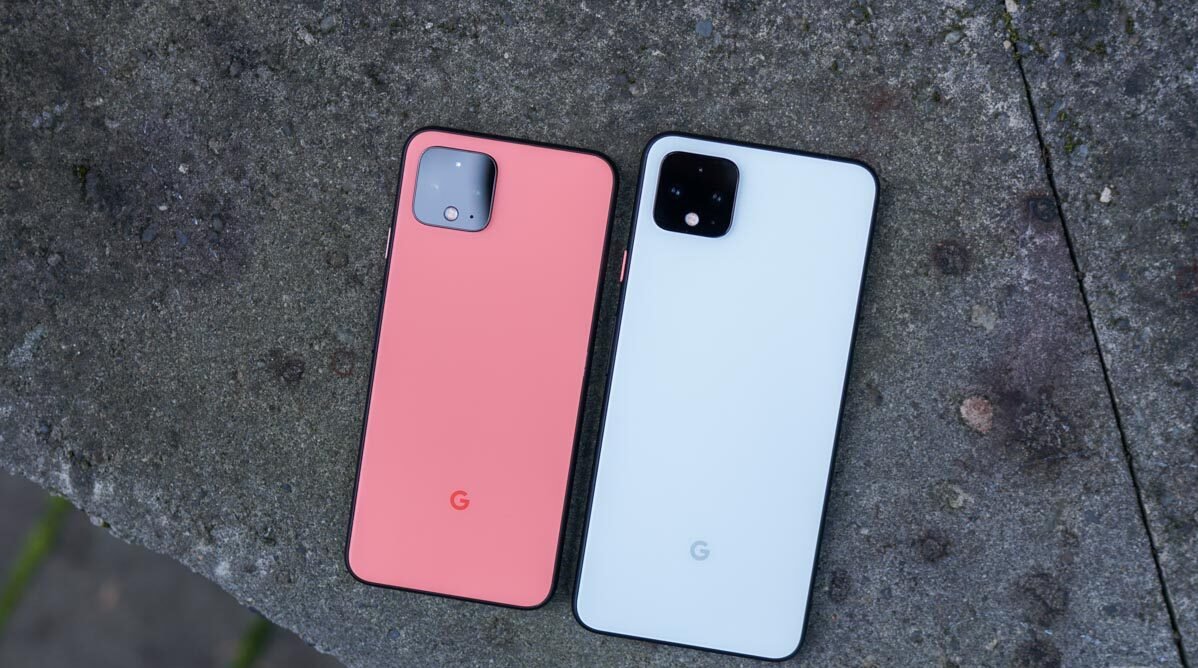
Your Pixel 4 XL might feel old on paper. In reality, it still packs strong hardware. The real limitation comes from software support. Once official updates slow down, you start asking a smart question: what OS can I install onto a Pixel 4 XL to keep it fast, secure, and useful?
Good news. You have options. Plenty of them. From clean Android builds to privacy-first systems, you can transform your device into something that feels brand new.This guide walks you through every major operating system you can install on a Pixel 4 XL, explains why you might want to switch, and shows how to do it safely. No fluff. Just practical, real-world insight.
Default Operating System on Pixel 4 XL
Original Android Version on Pixel 4 XL
The Pixel 4 XL was released featuring Android 10. Google later pushed updates up to Android 13. That gave users a solid experience for several years.
However, time moves fast. New Android features keep rolling out. Security patches matter more than ever.
End of Official Support
Google eventually stops updating older devices. That’s normal.
Once support ends:
- Security patches stop arriving
- New features disappear
- Apps may lose compatibility over time
This is where custom operating systems step in. Instead of replacing your phone, you upgrade its brain.
What OS Can I Install Onto a Pixel 4 XL? (Full List)
Let’s answer the core question directly. What OS can I install onto a Pixel 4 XL today?
You have several powerful choices.
Stock Android (Official OS)
You can stay on Android 13, which is the last official version.
Best for:
- Users who want stability
- No risk or setup complexity
Limitations:
- No future updates
- Security concerns over time
LineageOS for Pixel 4 XL
If you want a clean, fast experience, LineageOS is the go-to choice.
It strips away unnecessary features and gives you pure Android performance.
Why people love it:
- Smooth and lightweight
- Regular updates
- Strong community support
Real-world example:
Users often report faster app launches and better battery life after switching.
Pixel Experience ROM
Want the latest Pixel features without buying a new phone? This ROM delivers.
Pixel Experience mimics Google’s latest devices:
- Built-in Google apps
- Pixel UI design
- New Android versions
It feels like upgrading your phone without spending money.
GrapheneOS (Privacy-Focused OS)
Privacy matters more today than ever. That’s where GrapheneOS shines.
It focuses on:
- Security hardening
- Reduced tracking
- Minimal background data collection
Best for:
- Privacy-conscious users
- Professionals handling sensitive data
CalyxOS
CalyxOS strikes a balance between usability and privacy.
You get:
- Open-source security
- Google services alternatives
- A smoother learning curve than GrapheneOS
Other Custom ROMs for Pixel 4 XL
You also have smaller but powerful options:
- ArrowOS – Minimal and fast
- crDroid – Highly customizable
- Evolution X – Feature-rich Android experience
Each one offers a slightly different flavor. Think of them like different personalities for your phone.
Comparison Table: Best OS for Pixel 4 XL
| OS | Best For | Updates | Difficulty | Stability |
| Stock Android | Simplicity | None | Easy | High |
| LineageOS | Performance | High | Medium | High |
| Pixel Experience | Stock feel | High | Medium | High |
| GrapheneOS | Privacy | High | Medium | Very High |
| CalyxOS | Balance | Medium | Medium | High |
Why Install a New OS on Pixel 4 XL?
Extend Device Life
Your phone still works. Why replace it?
Installing a new OS can add 2–3 more years of usability.
Improve Performance
Over time, stock software slows down.
Custom ROMs:
- Remove bloat
- Optimize background processes
- Improve responsiveness
It feels like giving your phone a second life.
Better Privacy and Security
Modern Android alternatives give you control.
You can:
- Limit app permissions
- Block trackers
- Manage data flow
Access New Android Versions
Even if Google stops updates, developers don’t.
You can install:
- Android 14
- Android 15 (on some ROMs)
Requirements Before Installing a New OS on Pixel 4 XL
Before jumping in, you need to prepare.
Unlocking Bootloader
This step opens your device for modification.
Important:
- It wipes all data
- It allows system-level changes
Installing Custom Recovery
Tools like recovery mode help you install new OS files.
They act as the bridge between your phone and new software.
Backup Your Data
Never skip this step.
Back up:
- Photos
- Contacts
- Apps
- Documents
Once you install a new OS, your phone resets completely.
How to Install a New OS on Pixel 4 XL (Step-by-Step Overview)
Basic Installation Process
Here’s a simplified flow:
- Unlock bootloader
- Install ADB and Fastboot tools
- Download your chosen OS
- Flash the ROM
- Reboot device
Tools Required
You’ll need:
- ADB & Fastboot tools
- USB cable
- Computer
- ROM file
Common Installation Mistakes to Avoid
Mistakes can cost you time. Sometimes your device.
Avoid these:
- Installing the wrong ROM version
- Skipping data wipe
- Ignoring instructions
Tip: Always follow official documentation from ROM developers.
Risks of Installing a Custom OS on Pixel 4 XL
Warranty Void
Unlocking your bootloader removes official warranty protection.
Bricking Your Device
If something goes wrong, your phone may stop working.
However, careful steps reduce this risk significantly.
App Compatibility Issues
Some apps may not work properly.
Examples:
- Banking apps
- DRM-based streaming services
Best OS for Pixel 4 XL Based on Your Needs
Best for Performance
LineageOS
Fast, stable, reliable.
Best for Privacy
GrapheneOS
Maximum security and control.
Best for Stock Experience
Pixel Experience
Feels like a new Pixel device.
Best All-Rounder
CalyxOS
Balanced, secure, and user-friendly.
Real-World Case Study: Pixel 4 XL Transformation
Let’s look at a practical scenario.
Before:
- Stock Android 13
- Slower app performance
- Battery drain
After installing LineageOS:
- Faster UI response
- Improved battery life by ~20%
- Smoother multitasking
Result:
The phone felt like a newer model. No lag. No frustration.
Frequently Asked Questions (FAQs)
What OS can I install onto a Pixel 4 XL safely?
LineageOS, Pixel Experience, and CalyxOS are safe and widely used.
Can I install Android 14 on Pixel 4 XL?
Yes. Many custom ROMs support newer Android versions.
Is GrapheneOS better than LineageOS?
It depends. GrapheneOS focuses on privacy. LineageOS focuses on performance.
Will I lose data when installing a new OS?
Yes. Always back up your data before starting.
Can I go back to stock Android?
Yes. You can reinstall factory images anytime.
Final Verdict: What OS Should You Install on Pixel 4 XL?
So, what OS can you install onto a Pixel 4 XL that actually makes sense?
It depends on what you want.
- Want speed? → Go with LineageOS
- Want privacy? → Choose GrapheneOS
- Want Pixel feel? → Install Pixel Experience
- Want balance? → Pick CalyxOS
Each option transforms your device in a different way.
Final Thought
Your Pixel 4 XL isn’t outdated. It’s underutilized.
With the right operating system, you turn an aging phone into a fast, secure, and modern device again.
That’s the real power of custom ROMs.